Sprite Get the app
In every plan, Free included

Kids' controls and safety

Every kid gets their own account, set up by a parent. The parent decides what Sprite may do for that child, requests that need a grown-up wait for a parent's yes, and some rules stay on whatever the settings say.

Kids' controls and the safety rules are in every plan, including Free.

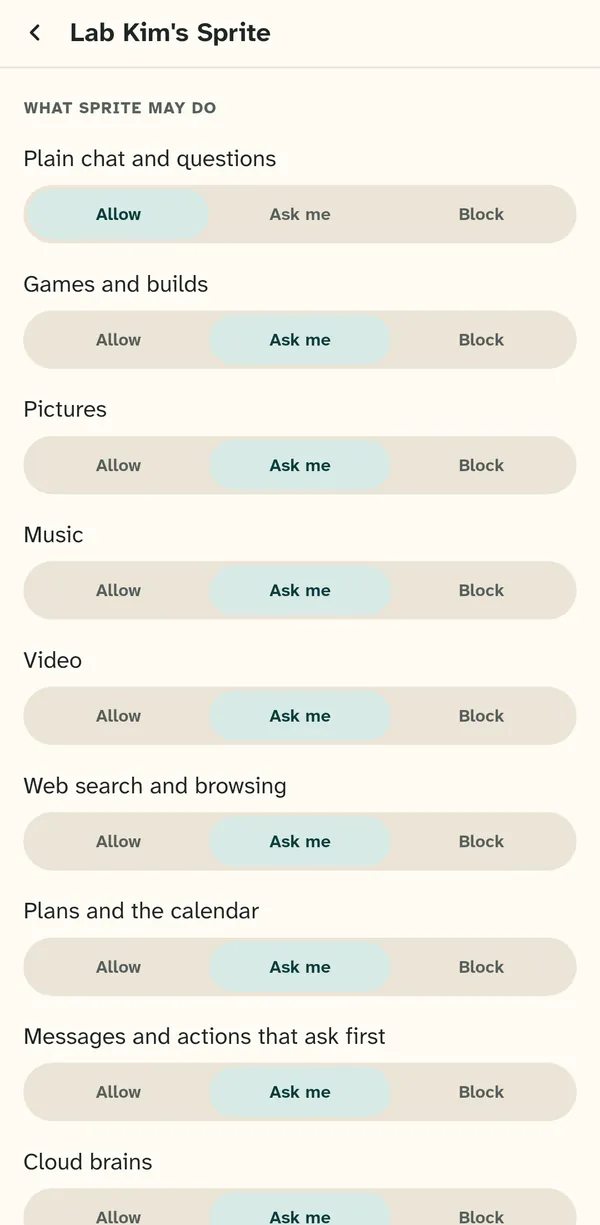
A parent's settings for Lab Kim: Allow, Ask me or Block for chat, games, pictures, music, video, web search, plans, messages and cloud models

Allow, Ask me or Block

For each child, a parent sets every kind of request to Allow, Ask me or Block:

  • plain chat and questions
  • games and builds
  • pictures
  • music
  • video
  • web search and browsing
  • plans and the calendar
  • messages and actions that ask first
  • cloud models

Publishing and sharing has its own setting too.
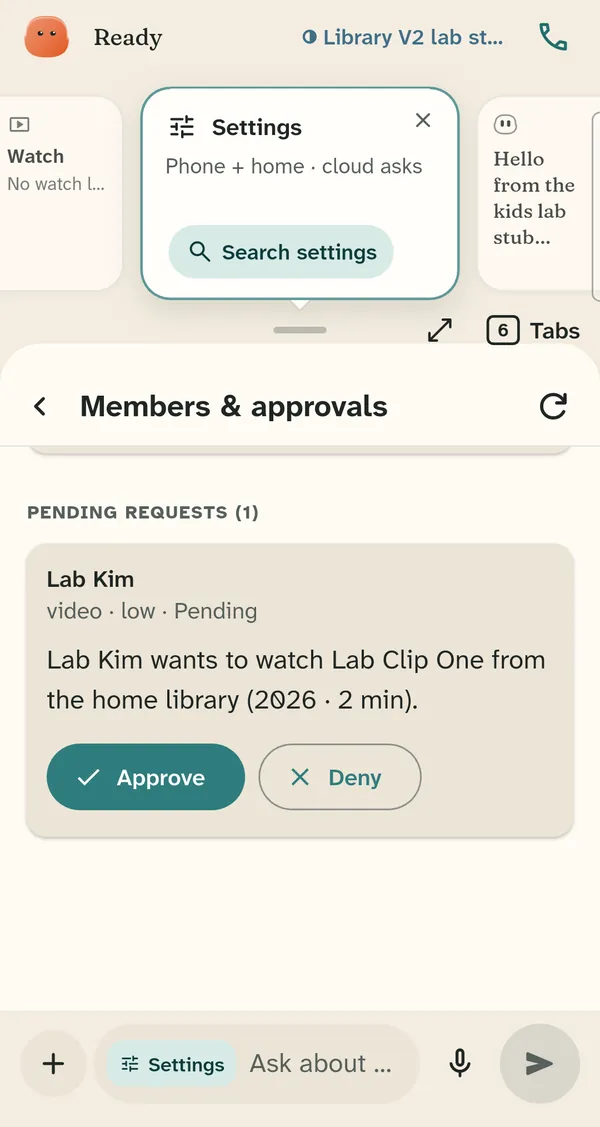
A parent's Members and approvals screen with a request from Lab Kim to watch a movie, and Approve and Deny buttons

Requests that wait for a parent

When a setting is Ask me, the kid's request goes to a parent's phone as a card that says, in words, what the kid asked for. Sprite waits. The parent taps Approve or Deny, and the kid's screen keeps waiting even after a restart.

A parent's yes to a game a kid asked for also covers publishing it and sharing it in the family, so one card is enough for one game.

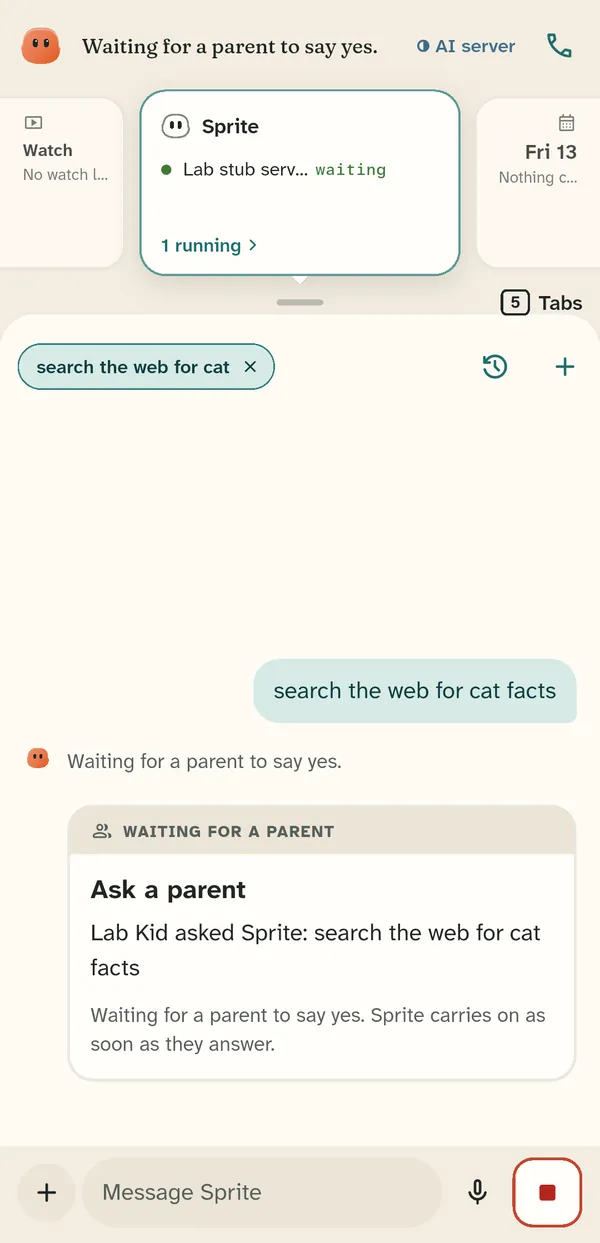
A kid's screen saying Waiting for a parent to say yes, with the request Search the web for cat facts

Rules a parent cannot turn off

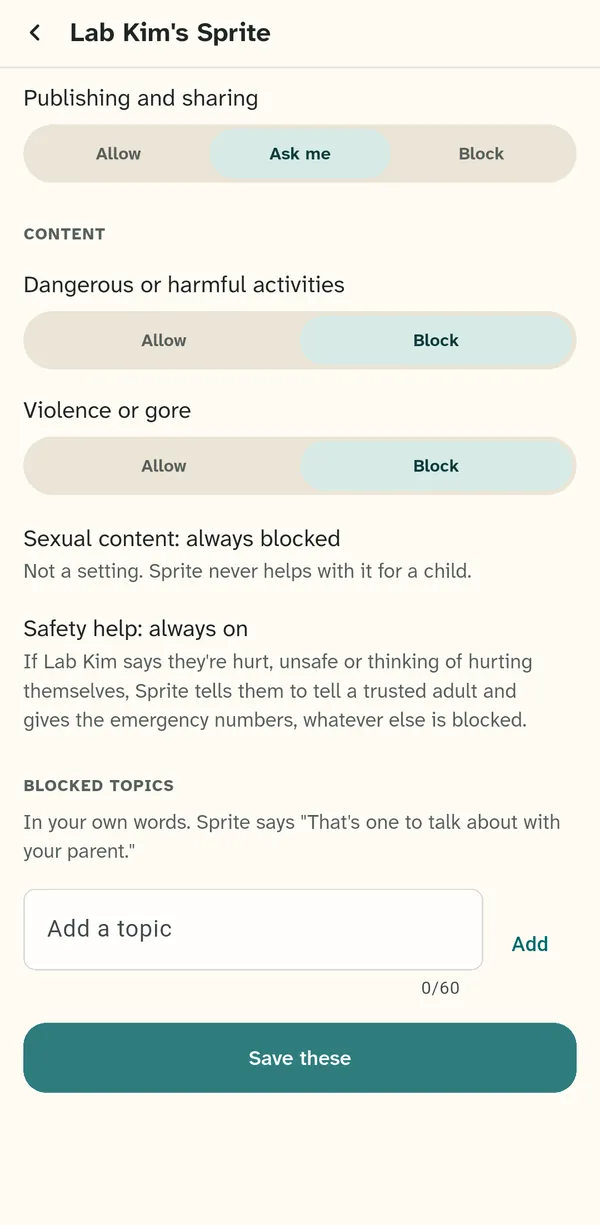
  • Sexual content is always blocked. It is not a setting; Sprite never helps with it for a child.
  • Safety help is always on. If a child says they are hurt, unsafe or thinking of hurting themselves, or that someone is hurting them, Sprite tells them to get help from a trusted adult and gives the emergency numbers, whatever else is blocked.
  • Dangerous or harmful activities, and violence or gore, start on Block.
  • A parent can add blocked topics in their own words. Sprite answers those with “That's one to talk about with your parent.”

The same rules apply whichever AI model answers the child. Before a child's request runs, Sprite checks it against a list of phrases and with a separate safety check. If the safety check gives no answer, the request waits for a parent.

The rest of a parent's settings: publishing, dangerous activities and violence on Block, sexual content always blocked, safety help always on, and blocked topics

Movies and shows

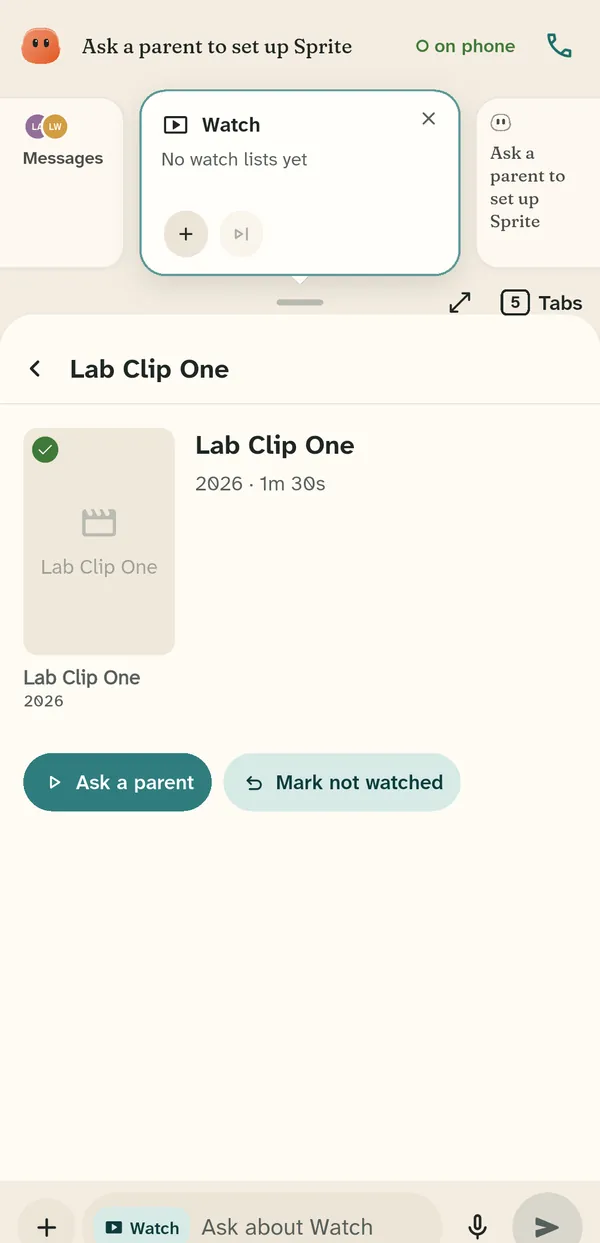
Kids can watch the household's movies and shows under their parent's Video setting. Allow lets them watch, Ask me sends the parent a request for each title, and Block hides the library. Titles for adults only stay hidden from kids.

A kid's view of a movie with an Ask a parent button

Phones and sign-in

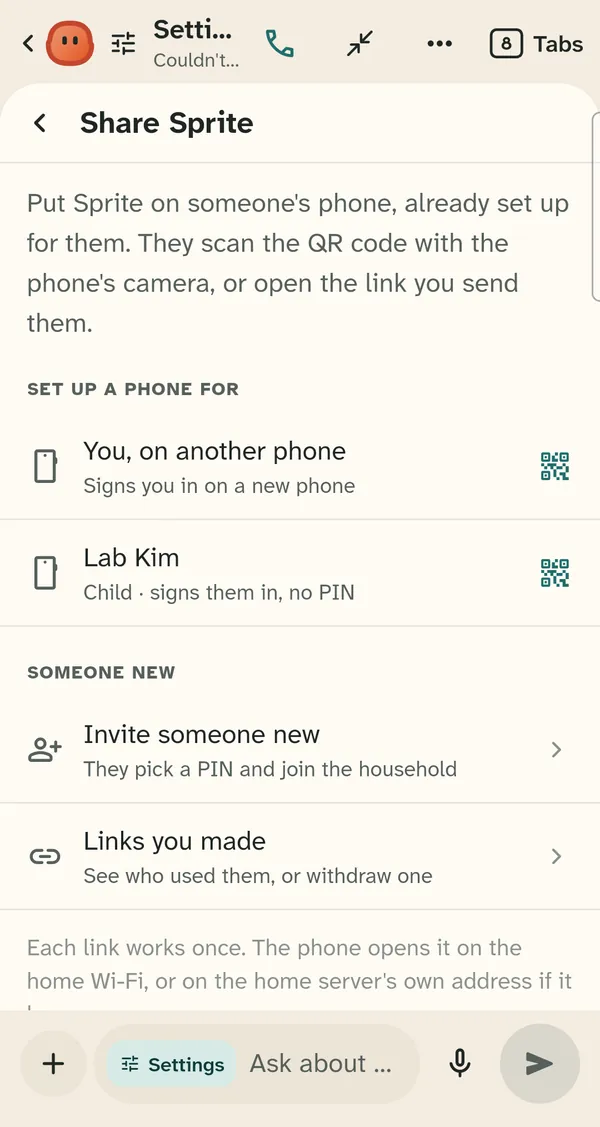
A parent sets up a kid's phone from Settings, under Members and approvals, then Share Sprite, with a setup link or its QR code. The kid's phone signs in without a PIN. After the setup link signs a phone in, close Sprite and open it again once. A child's parents are chosen by the adult who added the child, and the household's admin decides where each child may send a copy of a document or sheet.

The Share Sprite screen with QR codes to set up a phone for a family member